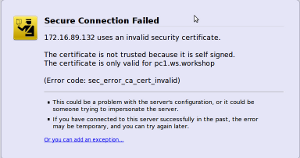
Firefox version 3
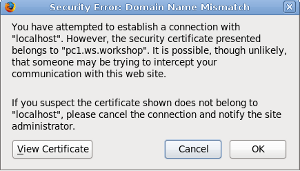
Firefox version 2
Exercises
By default in Ubuntu you have Apache available with a preconfigured setup to allow you to use a pre-generated, self-signed certificate for https (ssl) web access.
To enable ssl simply do:
# sudo a2enmod ssl
That's it. You're done.
To generate your own locally signed certificate and install it for use in Apache requires multiple steps. You can see a sample of doing this here:
http://www.ws.afnog.org/afnog2009/sae/day4/ssl/ssl-exercises.htmlYou can view the Apache SSL configuration by looking in the file:
/etc/apache2/sites-available/default-ssl
If you look through the file you will see that the local certificate (without password) and the local key file are here:
SSLCertificateFile    /etc/ssl/certs/ssl-cert-snakeoil.pem


SSLCertificateKeyFile /etc/ssl/private/ssl-cert-snakeoil.key
2.) Verify that http and https (Apache) are Working [Top]
For this exercise you can be any user.
This is very simple. In the web browser of your choice go the to the following address:
http://localhost/
You should have gotten the page with text:
Now go to this address:It worked!
https://localhost/
Depending on what version of Firefox you are using you will see
different dialgoues warning you that the certificate is not
trusted. Sample dialgoues include:
Firefox version 3 |
Firefox version 2 | |
|
|
|
Go through the process of accepting the certfificate. When you get the chance to view the certificate take a look. You see the information you filled in when generating the CSR (what's that stand for?).
We'll discuss what just happened for a bit, and we'll take a look at a web browser, built-in trusted CA's, etc. After that we'll generate our own, signed certificate.
3.) Advanced Verification Methods (Optional exercise) [Top]
For this exercise you can run as a general user.
At the most simple level let's verify that the Apache web server daemon appears to be running. We can use the ps command to do this:
$ ps auxw | grep apache
Remember that Apache uses the actual binary file /usr/local/sbin/httpd to start the Apache web server as indicated by the final message during installation. That's why we grep'ed on "httpd" instead of "apache".
The output you should see will look something like this:
Note that Apache runs with multiple instances of the apache daemon. This is so that the web server can rspond to multiple requests more efficiently. Also notice that the first httpd daemon that starts runs as root, but subsequent daemons use the user "www" - This is to make the web server less vulnerable to attacks that might gain root access.root 16868 0.0 0.5 39180 12012 ? Ss 12:23 0:00 /usr/sbin/apache2 -k start www-data 21906 0.0 1.0 51276 22076 ? S 14:45 0:00 /usr/sbin/apache2 -k start www-data 22057 0.1 1.1 53324 23652 ? S 14:50 0:00 /usr/sbin/apache2 -k start www-data 22110 0.1 1.1 53324 23352 ? S 14:53 0:00 /usr/sbin/apache2 -k start www-data 22207 0.1 1.0 51280 22032 ? S 14:55 0:00 /usr/sbin/apache2 -k start www-data 22208 0.2 1.1 53332 22400 ? S 14:55 0:01 /usr/sbin/apache2 -k start www-data 22209 0.0 0.4 39548 8676 ? S 14:55 0:00 /usr/sbin/apache2 -k start www-data 22307 0.0 0.4 39180 8196 ? S 14:58 0:00 /usr/sbin/apache2 -k start www-data 22321 0.2 1.0 51272 21984 ? S 14:58 0:00 /usr/sbin/apache2 -k start www-data 22323 0.1 1.0 51268 20724 ? S 14:58 0:00 /usr/sbin/apache2 -k start www-data 22478 0.3 1.0 51268 20772 ? S 15:00 0:00 /usr/sbin/apache2 -k start
So, this shows you that Apache is running, but is it accessible to users with web browsers? It's possible you might be on a machine in the future and not have a web browser available, even though the machine is running a web server. You can use telnet to verify if the web server is available. To do this type:
$ telnet 127.0.0.1 80
If you get back something like:
This is a good indication that you have a web server working. Still, to be sure that this is not some other server running on port 80 you could go a step further. You can view the initial web server page on port 80 by doing this:Trying 127.0.0.1... Connected to pcX.sae.ws.afnog.org Escape character is '^]'.
And you will see the initial Apache welcome page scroll by on your screen. Now that you saved the output of this session to the file ~/apache.txt) we can get some additional information.^] [press CTRL key and ']' character to exit] telnet> quit $ cd [to go your home directory] $ script apache.txt [use FreeBSD script utility to save session to a file] $ telnet 127.0.0.1 80 GET / HTTP/1.0 [press ENTER] host: localhost [press ENTER twice] $ exit [to leave your script shell]
Type the file apache.txt to your screen by doing:
In the first page of information presented you should see something lie:$ cd [to go your home directory] $ less apache.txt [remember, "q" to exit the less screen]
Notice that you can now see exactly what version of Apache is running, that it appears to be ssl-enabled and it is using OpenSSL 0.9.8e and mod_ssl to do this.HTTP/1.1 200 OK Date: Thu, 14 May 2009 04:34:38 GMT Server: Apache/2.2.11 (FreeBSD) DAV/2 mod_ssl/2.2.11 OpenSSL/0.9.8e Last-Modified: Thu, 14 May 2009 03:26:04 GMT ETag: "3e3b1c-2c-469d6e3496b00" Accept-Ranges: bytes Content-Length: 44 Connection: close Content-Type: text/html
So, it appears that Apache is ssl-enabled on this machine, but how can we prove this? A web server with ssl support means that you can go to URL addresses that start with "https" (http secure).
We'll use a tool that comes with OpenSSL to allow us to make ssl connections, verify encryption in use, view certificates, etc. You can simply type "openssl" and then you will get a prompt where you can use the multiple openssl tools, or you can combine the command "openssl" with the various tools on your command line. This is what we will do using the openssl s_client tool. Try typing these commands:
And you will get several screens of information about your Apache web server, the ssl certificate that is currently installed and it's detailed information, what protocols are in use, and more.$ cd$ script ssltest.txt
$ openssl s_client -connect localhost:443
[Press ctrl-c to exit the information screen]
$ exit
$ less ssltest.txt
In most cases this is overkill and you can simply use a web browser to verify functionality, but having alternatives is always nice.