This lab investigates configuring RPKI support on the lab routers, to talk to the newly installed validator cache.
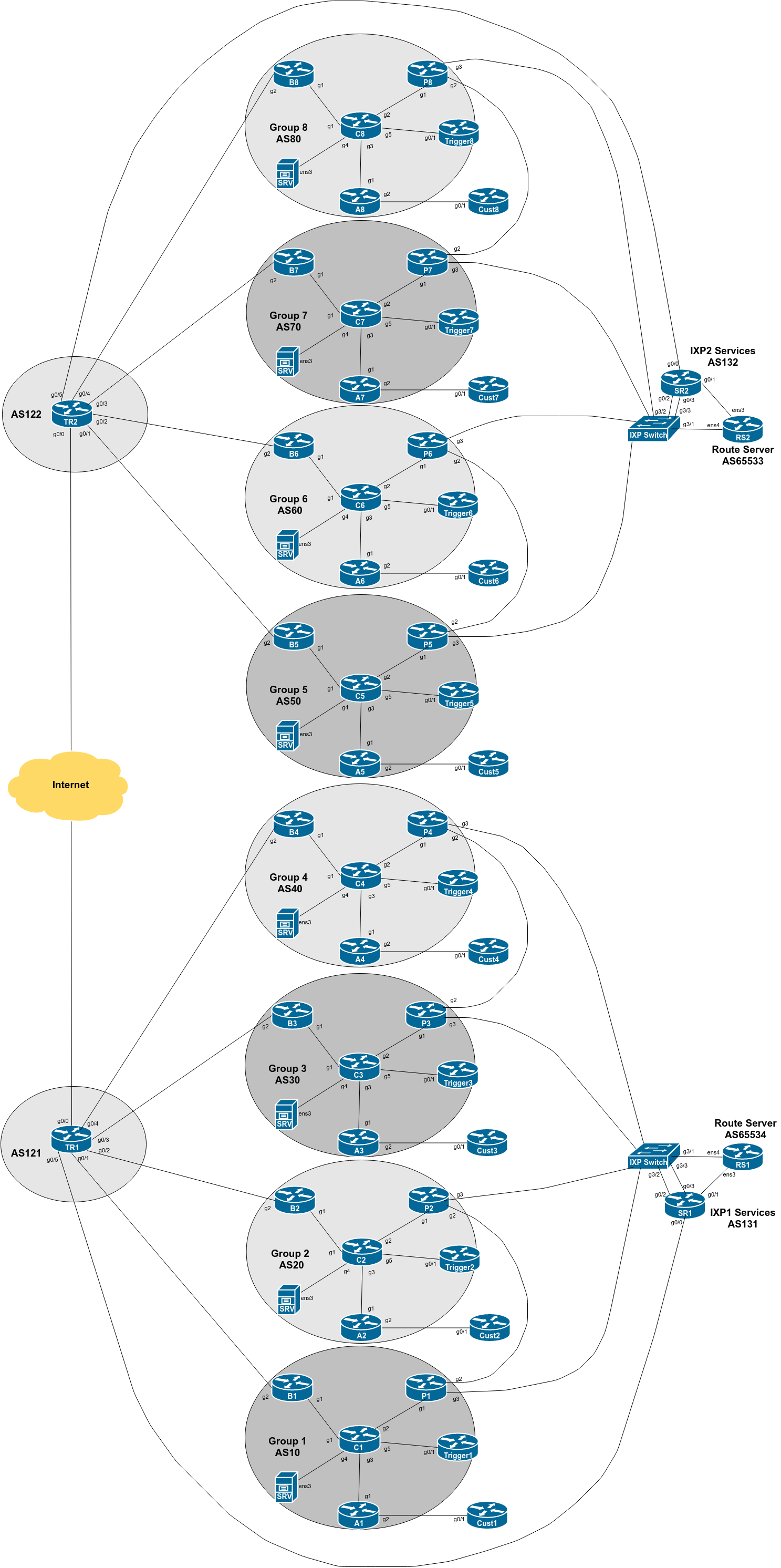
The diagram below is a reminder of the lab topology:
With the validator cache now operational on the SRV appliance in each group, we can now configure the routers to get the cached ROA (VRPs) from the cache.
Most network operators will simply configure the RPKI settings on their border routers1, the routers which connect to other Autonomous Systems. Most operators will make validation decisions right there and then, although some will choose to propagate the validation information across their network so that all routers can partake, if required.
We will set up the Peering Router, Border Router and Access Router to talk to the validator cache you set up in the previous lab. There is no need for the Core router to talk to the cache, as prefixes arriving on the Core should already have been validated by the others.
Cisco IOS has a one line configuration to do this:
router bgp X0
 bgp rpki server tcp 100.68.X.30 port 3323 refresh 3600
And that is it. This tells the router to connect by TCP to 100.68.X.30 (the SRV appliance) on port 3323, refreshing the cache every 3600 seconds (60 minutes), the recommendation made in RFC8210.
The instructors are also running a validator cache on rpki.ws.nsrc.org - its IP address is 100.64.0.1. Set this up as well, using the same command format as above.
Note: the Peering Router doesn’t have reachability to the instructor’s validator, so only set this up on the Border and Access Routers.
We can now see if the router is talking to the cache, and the information it is receiving. For example, on the Border router:
BX# show ip bgp rpki ?
  servers  Display RPKI cache server information
  table    Display RPKI table entries
The servers option will list the servers configured, and their status, and should look like this, an example taking from the Border Router in Group 1 in an earlier version of this workshop:
B1# show ip bgp rpki servers
BGP SOVC neighbor is 100.64.0.1/3323 connected to port 3323
Flags 64, Refresh time is 3600, Serial number is 0, Session ID is 59223
InQ has 0 messages, OutQ has 0 messages, formatted msg 1
Session IO flags 3, Session flags 4008
 Neighbor Statistics:
  Prefixes 146080
  Connection attempts: 1
  Connection failures: 0
  Errors sent: 0
  Errors received: 0

Connection state is ESTAB, I/O status: 1, unread input bytes: 0
Connection is ECN Disabled, Mininum incoming TTL 0, Outgoing TTL 255
Local host: 100.121.1.1, Local port: 25395
Foreign host: 100.64.0.1, Foreign port: 3323
Connection tableid (VRF): 0
Maximum output segment queue size: 50
...

BGP SOVC neighbor is 100.68.1.30/3323 connected to port 3323
Flags 64, Refresh time is 3600, Serial number is 6, Session ID is 50378
InQ has 0 messages, OutQ has 0 messages, formatted msg 1
Session IO flags 3, Session flags 4008
 Neighbor Statistics:
  Prefixes 146281
  Connection attempts: 1
  Connection failures: 0
  Errors sent: 0
  Errors received: 0

Connection state is ESTAB, I/O status: 1, unread input bytes: 0
Connection is ECN Disabled, Mininum incoming TTL 0, Outgoing TTL 255
Local host: 100.68.1.17, Local port: 37387
Foreign host: 100.68.1.30, Foreign port: 3323
Connection tableid (VRF): 0
Maximum output segment queue size: 50
...
There is the IPv6 equivalent command, which looks like this:
show bgp ipv6 unicast rpki serversIf you see that the connection to the validation server isn’t working, then you might have to restart the RPKI system on the router. To do this, the command is:
clear ip bgp rpki server 100.68.X.30 port 3323which will restart the connection. The router CLI reports:
PX#clear ip bgp rpki ser 100.68.X.30 port 3323
RPKI query in progress.  Deferring reset until EOD
that a query is in progress and the reset is deferred - this seems to be a bug in IOS as the RPKI session with the server is refreshed when running the above command.
Note that the connection will often fail until the validator is up and running, as the validator needs to sync with the CAs first, and then run a check on the refreshed data. You can usually find this by checking the router logs for messages like this:
*May 7 2020 20:48:49.719 AEST: %BGP-4-BGP_RPKI_ERROR_MESSAGE: BGP received an RPKI Error Report PDU from rpki server 100.68.1.30/3323 No Data Available Running initial validation hex dumpIf you find that the connection still won’t restart, deleting and re-entering the BGP RPKI configuration on the router is the only way forwards. This is quite likely a bug in Cisco IOS.
The other command option available is the table option, which will display the current RPKI table. To get the IPv4 table, enter the command:
BX# show ip bgp rpki tableand you will see output looking like this:
B4# show ip bgp rpki table
116796 BGP sovc network entries using 18687360 bytes of memory
126543 BGP sovc record entries using 4049376 bytes of memory

Network              Maxlen  Origin-AS  Source  Neighbor
1.0.0.0/24           24      13335      0       100.68.4.30/3323
1.0.0.0/24           24      13335      0       100.64.0.1/3323
1.1.1.0/24           24      13335      0       100.68.4.30/3323
1.1.1.0/24           24      13335      0       100.64.0.1/3323
1.6.132.240/29       29      9583       0       100.68.4.30/3323
1.6.132.240/29       29      9583       0       100.64.0.1/3323
...
Note the double entry for each prefix - one entry from your Group’s Routinator, the other entry from the validator cache running on the instructor system.
To get the IPv6 table, enter the command:
BX# show bgp ipv6 unicast rpki tableand you will see output looking like this:
B4# show bgp ipv6 unicast rpki table
19904 BGP sovc network entries using 3662336 bytes of memory
21744 BGP sovc record entries using 695808 bytes of memory

Network              Maxlen  Origin-AS  Source  Neighbor
2001:200::/32        32      2500       0       100.68.4.30/3323
2001:200::/32        32      2500       0       100.64.0.1/3323
2001:200:136::/48    48      9367       0       100.68.4.30/3323
2001:200:136::/48    48      9367       0       100.64.0.1/3323
2001:200:1BA::/48    48      24047      0       100.68.4.30/3323
2001:200:1BA::/48    48      24047      0       100.64.0.1/3323
...
Also, go back on to the SRV appliance, and check the connections using the netstat command. You should see something like this, taken from Group 1’s appliance in an earlier version of this workshop:
srv1$ netstat -a | grep 3323
tcp        0      0 srv1.ws.nsrc.org:3323   0.0.0.0:*               LISTEN
tcp        0      0 localhost:3323          0.0.0.0:*               LISTEN
tcp        0      0 srv1.ws.nsrc.org:3323   gi0-1.p1.ws.nsrc.:23307 ESTABLISHED
tcp        0      0 srv1.ws.nsrc.org:3323   gi0-1.a1.ws.nsrc.:33901 ESTABLISHED
tcp        0      0 srv1.ws.nsrc.org:3323   gi0-1.b1.ws.nsrc.:37387 ESTABLISHED
tcp6       0      0 srv1.ws.nsrc.org:3323   [::]:*                  LISTEN
tcp6       0      0 ip6-localhost:3323      [::]:*                  LISTEN
Note the three connections made to the cache, one each from A1, B1 and P1. Nothing from the Core router as that doesn’t need to do route origin validation, as we noted earlier.
To conclude the lab, explore the RPKI table (the VRPs) as stored on the router. See if you can find your own organisation’s prefixes listed in there. If not, what do you think the issue is?
This lab has shown how to configure a router to connect to and troubleshoot the connectivity to the validation caches set up for the workshop network.
Basically all routers with EBGP sessions configured on them.↩