
The instructors have set up Proxmox clusters for you to work on. Each cluster has 9 hosts, but you’ll be using only the first 6 for now.
Check your group number in this table to find out which host you’ll be working on.
| group | cluster/host | group | cluster/host | group | cluster/host | ||
|---|---|---|---|---|---|---|---|
| group 1 | cluster1-host1 | group 7 | cluster2-host1 | group 13 | cluster3-host1 | ||
| group 2 | cluster1-host2 | group 8 | cluster2-host2 | group 14 | cluster3-host2 | ||
| group 3 | cluster1-host3 | group 9 | cluster2-host3 | group 15 | cluster3-host3 | ||
| group 4 | cluster1-host4 | group 10 | cluster2-host4 | group 16 | cluster3-host4 | ||
| group 5 | cluster1-host5 | group 11 | cluster2-host5 | group 17 | cluster3-host5 | ||
| group 6 | cluster1-host6 | group 12 | cluster2-host6 | group 18 | cluster3-host6 |
You will be working in your assigned groups of two or three people; one person should perform the steps while others watch (although you can all open the web interface if you like).
Start at http://www.ws.nsrc.org/, and use the drop-down menu to access the web interface for your Proxmox host. Alternatively you can enter https://clusterX-hostY.ws.nsrc.org:8006 into your browser.
In fact, you can login to the web UI on any host in the the correct cluster. Any host can manage all other hosts in the same cluster. But when you create a VM, please create it on your assigned host.
To login, use the username and password given by your instructors, with realm “Proxmox VE authentication server”.
Ignore the message about “No valid subscription”, and click OK.
To check the overall status of the cluster:
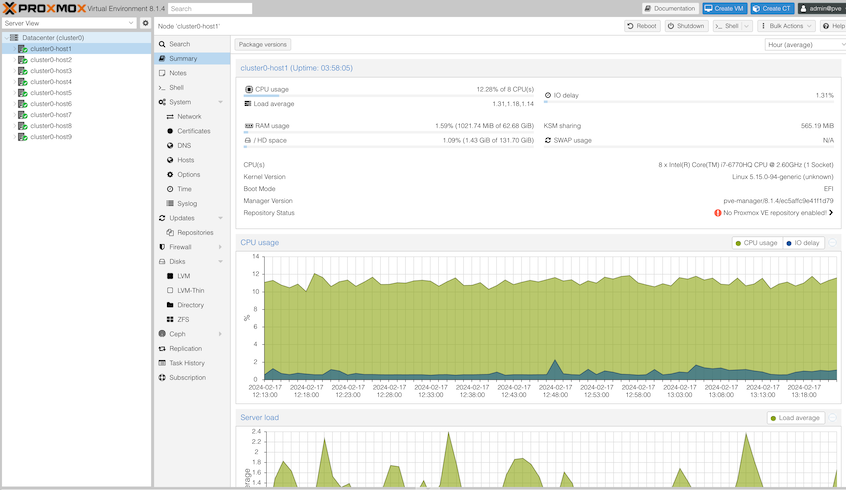
To check the status of your assigned host:
It is possible to create a VM step-by-step in the GUI, and manually install an OS from an ISO image. (That’s available as an extension exercise later).
But for a more cloud-like experience you’re going to start from a pre-prepared OS image, import it to create a VM template, then launch a VM from this configured with cloud-init, just like on a public cloud.
This example uses the Ubuntu cloud image published by Canonical, but the same process should work for many other cloud images.
Choose one person in your group to do this part, while the others watch and help
This part of the exercise uses the Unix command line (shell), partly for speed, and partly because one step can’t be done in the GUI.
To begin with, you need to get a Unix shell on your Proxmox host. Use the host for your group shown in the table earlier.
You can do this in the Proxmox web UI by selecting your host in the left-hand menu, then clicking >_ Shell in the next column. Your instructors will give you the username and password (which will be different to the Proxmox web login)
Alternatively, from the training platform main page, click on the SSH menu for your cluster and select your Proxmox host.
Once you are at the command prompt, type sudo -s to get a root shell. Your new prompt should end with a # symbol.
sysadm@clusterX-hostY:~$ sudo -s
root@clusterX-hostY:/home/sysadm#
There are various commands you can type here. Try typing pvecm status which tells the PVE Cluster Manager to show the synchronization status of your cluster.
Step 1: start by creating a VM with no disk.
You need a numeric ID for your VM which is unique with your cluster. Use 9000 + your group number, e.g. if you are group 15 then use 9015.
Run the following command, changing the items shown (You can use copy-paste, and edit the command before hitting Enter)
qm create 90XX --memory 1024 --net0 virtio,bridge=vmbr0 --scsihw virtio-scsi-pci
          ^^^^
       change this
If you get any error, ask for help.
Step 2: add a SCSI disk. The instructors should have already made a suitable image available, so you can add a drive and import it from the image at the same time (this is the one step which doesn’t appear to be possible through the GUI)
qm set 90XX --scsi0 local:0,import-from=/mnt/host/private/jammy-server-cloudimg-amd64.img(In local:0, local is the storage pool and 0 is the disk number)
Step 3: set the VM to boot from this drive:
qm set 90XX --boot order=scsi0Step 4: Add a CD-ROM which will hold the cloud-init data used to configure the VM
qm set 90XX --ide2 local:cloudinitStep 5: (NOT REQUIRED). Some cloud images require the VM to use a serial console. But the Ubuntu cloud image we’re using is fine with a normal VGA console, so you should skip this step.
### DON'T DO THIS:
### qm set 90XX --serial0 socket --vga serial0By now the VM will have appeared in the GUI automatically, but you can also inspect it from the command line:
qm config 90XXThe output should look something like this (the MAC address and uuids will be different)
boot: order=scsi0
ide2: local:9001/vm-9001-cloudinit.qcow2,media=cdrom
memory: 1024
meta: creation-qemu=8.1.5,ctime=1708203742
net0: virtio=BC:24:11:7C:D1:10,bridge=vmbr0
scsi0: local:9001/vm-9001-disk-0.raw,size=2252M
scsihw: virtio-scsi-pci
smbios1: uuid=ba409540-ee2a-46b1-a438-ef33099dcd75
vmgenid: d55c401c-e425-4ebb-9baa-878d8a3eb2b8
While you are here, you can look at exactly where Proxmox stores its local disk images:
ls -lRs /var/lib/vz/images/The flag -l means “long listing”, -R means recurse into subdirectories, and -s means to show the number of blocks allocated to each file (where each block is 512 bytes). An example response might look like this:
/var/lib/vz/images/9001:
total 793588
     7 -rw-r----- 1 root root    4521984 Feb 17 21:08 vm-9001-cloudinit.qcow2
793581 -rw-r----- 1 root root 2361393152 Feb 17 21:04 vm-9001-disk-0.raw
^^^^^^                        ^^^^^^^^^^              ^^^^^^^^^^^^^^^^^^
num.blocks                     file size                   file name
There are two files shown. The second one says its size is about 2.36GB. 793581 blocks have been allocated, meaning that only 793581x512 = 406,313,472 bytes or about 0.4GB of disk space has been consumed. This is a “sparse” or “thinly-provisioned” file. The remaining parts of the file are treated as being all zero data, and any writes to those areas will cause new blocks to be allocated.
Since just over 2GB is not a lot of space for our VM to grow into, let’s enlarge it to 8GiB (= 8 x 1024 x 1024 x 1024 bytes):
qm disk resize 90XX scsi0 8589934592Repeat the command ls -lRs /var/lib/vz/images/ and you should see the size is larger, but the number of allocated blocks is unchanged.
Note: it’s usually safe to grow a block device. However, shrinking one is VERY DANGEROUS and needs a great deal of care. You need to shrink the filesystem inside it first, or else you’ll lose all your data!
A different person in the group can do this section
Log into the Proxmox web interface, and find the VM you’ve created - it will be on your host, with the numeric ID you selected (you didn’t give it a name)
Once you’ve clicked on the VM (but don’t start it!), select “More > Convert to Template”, and click Yes to agree. This step can’t be reversed.
You can assign a name to your template: click on “Options” in the second column (it’s under Cloud-Init), double click Name, and enter a name like “ubuntu-22.04-groupX” (replacing X with your group number)
Now at the top right, select More > Clone and you will get a cloning page. Enter a name like “groupX-web”, set the mode to “Full Clone”. Then click Clone.
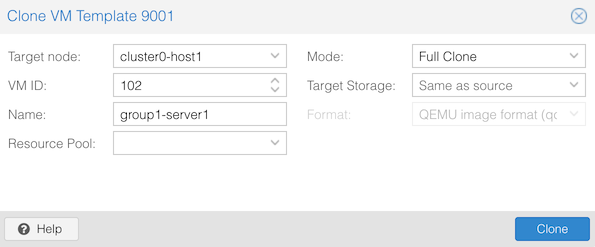
You’re now nearly ready to start the VM. However if you start it now, it won’t have any password set (or any other login method like SSH keys), so you won’t be able to login to it.
Click on your newly-created VM in the left-column, and click on Cloud-Init in the second column (underneath “Hardware”).
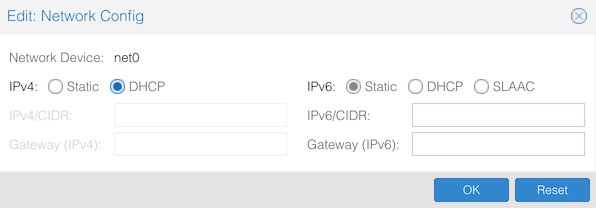
Then click “Regenerate Image”.
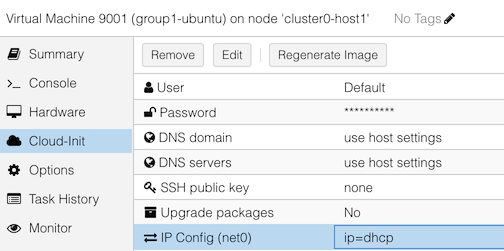
Note: you could also have set credentials before making the template, if you want the same defaults for all VMs you clone from it. You can still override them for each VM.
Now click on the “Console” button in the second column (above “Hardware”), and click the “Start Now” button in the middle.
There is also a “Console” button above the VM, but this will open the console in a new window.
Your VM should boot into Ubuntu Server.
Login with username “ubuntu” and the password that you configured into cloud-init.
Choose who in your group you want to do this section
From your VM’s console window, after logging in, enter the following commands:
sudo apt update
sudo apt install apache2
# answer "y" when requested
Once it has installed, find out your VM’s IP address with:
ip addr listLook for a line like this:
    altname enp0s18
    inet 100.64.2.70/22 metric 100 brd 100.64.3.255 scope global dynamic eth0
         ^^^^^^^^^^^
Then enter that IP address into your web browser, to view your website.
Let’s look at how Proxmox was able to pass your login credentials and network configuration to the VM template.
It does this by creating a small virtual CD-ROM image which is attached to the VM. Most VM images these days include the “cloud-init” tool which runs at first boot, reads this data, and configures the VM accordingly.
Still inside your VM, type the following:
sudo mount -r /dev/cdrom /mnt
ls /mnt
(Flag -r means “read-only”)
You chould see some files: meta-data, network-config, user-data, vendor-data. Look at the contents of two of these files:
cat /mnt/network-config
cat /mnt/user-data
The cloud-init online documentation gives you more information about what these settings mean.
Reading metadata from a disk image is what cloud-init calls the “nocloud” data source. In a public cloud, the metadata is usually provided via some other mechanism - in the case of AWS it’s a webserver on the local IP address 169.254.169.254.
Log files created by cloud-init while it ran are available at
/var/log/cloud-init-output.logand/var/log/cloud-init.log
Choose someone in the group who hasn’t done much so far
Connect to your VM’s console, login, and start the following command:
ping 8.8.8.8You should see pings scrolling up the screen, with increasing sequence numbers (icmp_seq).
You are now going to move this VM, while it is running, to another host.
Click the “Migrate” button, which is at the top right above the console.
Choose the next host along to migrate to: for example if you’re on host1, then migrate to host2, host2 to host3, … host6 to host1.
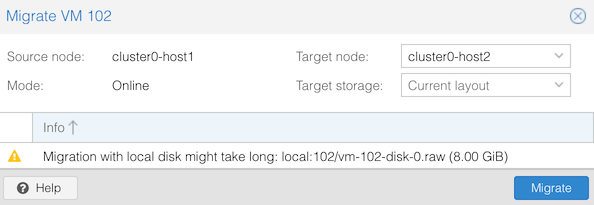
Click “Migrate” and a progress window should pop up. You will see the disk contents being migrated, and hopefully it well end with TASK OK after a few seconds - with the ping still running in the console.
But if you look in the left-hand pane, you’ll see that your VM is now running on a different host.
Live migration involves copying the entire RAM and CPU state, and because this VM has local disk, it also involves copying the entire disk image. That’s why there’s a warning that it might take a long time. Since RAM and disk can be changing, any “dirty” data may have to be copied again. There may be a short pause of a second or two while the final copy takes palce.
Now try migrating it back again to its original host.
Once you’ve finished, shutdown your VM by clicking on the Shutdown button. If you click on the arrow to the right, you’ll see there are several options:
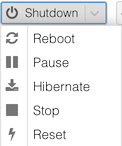
The difference between “Shutdown” and “Stop” is that “Shutdown” signals to the VM to shut itself down cleanly, whereas “Stop” terminates it instantly. Like pulling out the power cord on a server, “Stop” risks filesystem corruption - you should only do it if it won’t shut down properly, or you’re about to delete the VM anyway.
These are optional exercises in case you have spare time available, or to do in break time. Pick whichever you would like to follow.
Proxmox also supports containers (CT).
For this exercise, please use host7, host8 or host9 in your cluster.
(You can stay logged into the web UI on any host, but create your container on those hosts)
Click the blue “Create CT” button at the top.
You should see some text as your container is created, ending with “TASK OK”. Close the dialog box with (X).
Now click on your container in the left-hand menu, click Console in the second column, then click Start. After a few seconds you should get a login prompt. Login as “root” and the password you gave before.
How can we demonstrate this is a container? At the container’s command line, type sleep 1234 and hit Enter. This starts a long-running process.
Now get a command line on the proxmox node where this container is running by clicking clusterX-hostY in the left, and then >_ Shell in the middle column.
At the cluster’s command line, type ps auxwww | grep sleep
You should see some output like this:
sysadm@cluster0-host9:~$ ps auxwww | grep sleep
100000      5649  0.0  0.0   2788  1536 pts/1    S+   20:48   0:00 sleep 1234
sysadm      5965  0.0  0.0   6332  2048 pts/0    S+   20:49   0:00 grep sleep
The “sleep” process is just a process on your Proxmox node, with an unusual user ID (uid 0 inside the container is mapped to uid 100000 on the host, so that the container is not really running as root)
Type exit to leave this shell. In the container, hit Ctrl-C to stop the sleep command.
This demonstrates some of the GUI capabilities of Proxmox to install a VM in the “traditional” way.
Go to Datacenter > Storage. There should be an entry called “shared” with path /mnt/host. The instructors have shared one or more ISO images in this directory, such as AntiX linux.
Click the blue “create VM” at top right (not “create CT”)
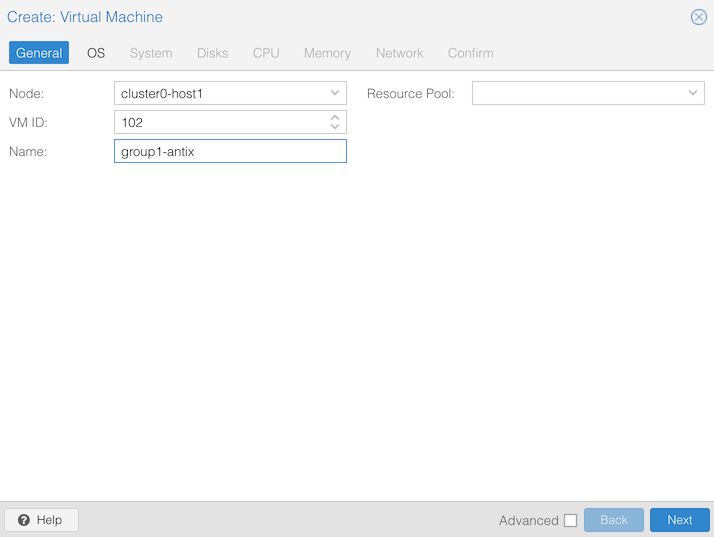
Under “General”:
Under “OS”:
antiX-23_x64-base.iso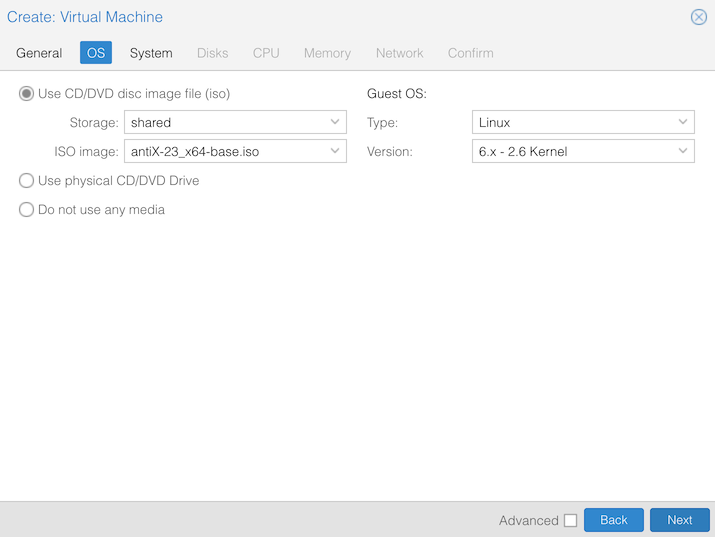
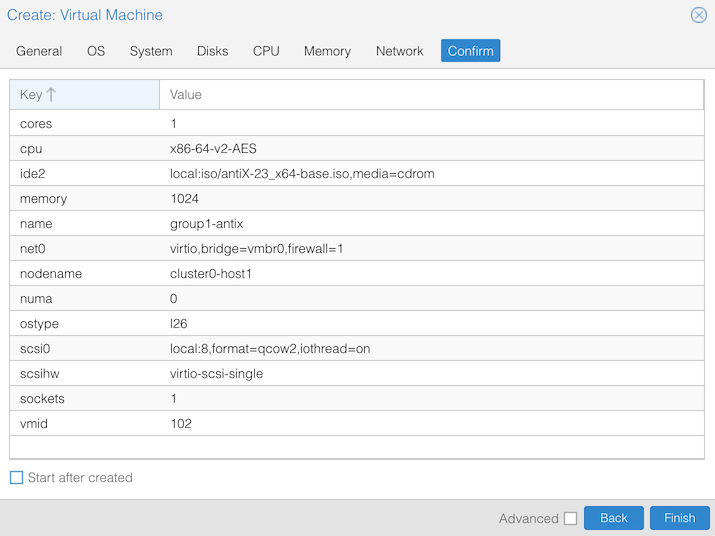
Under “System”, “Disks”, “CPU”, “Memory” and “Network” change the disk image size to 8GiB (down from 32GiB) and the RAM to 1024 GiB (down from 2048). Leave everything else at defaults - this will give you 1 vCPU, and a NIC attached to the “vmbr0” network, which is the class network. Then click “Finish”.
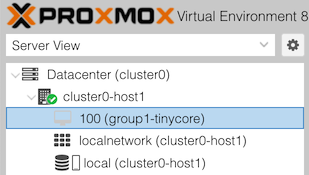
To find the VM you have created, expand your host in the left-hand list by double-clicking on it, or clicking the arrow next to it. Then click on your VM.
The right-hand pane will show information about your virtual machine. At the top, click on the “Start” button. Then click the >_ Console button to the left. (You can instead click >_ Console at the top, but that will open the console in a different window
When at the AntiX desktop, you can double-click on the installer and follows its prompts.
When you reboot and are asked to remove the CD-ROM, go to the Hardware tab and double-click on CD/DVD Drive. Change the selection to “Do not use any media” and click OK. Then return to the console.
When your VM reboots, it should be running from its instance disk.
For more info on using cloud images with Proxmox, see the Proxmox documentation on Cloud-Init Support and pve qm, and this blog post