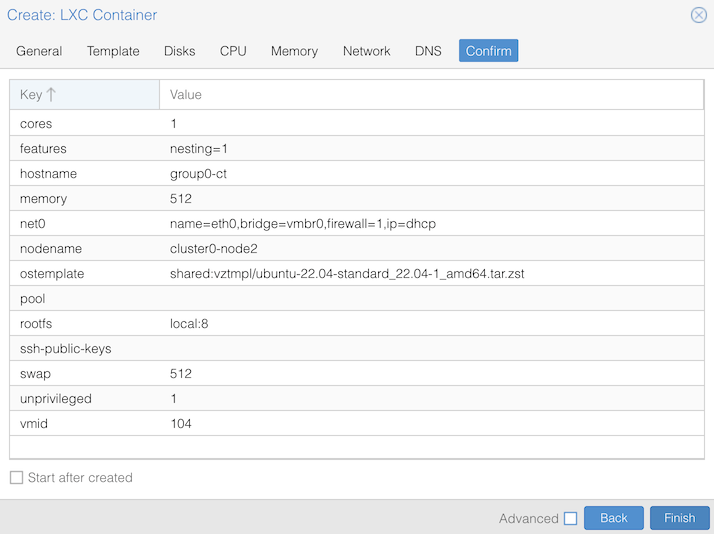
For this exercise, you’ll be working in your groups of 2 or 3 people, on your assigned group’s node, or as otherwise instructed:
| group | cluster/node | group | cluster/node | group | cluster/node | ||
|---|---|---|---|---|---|---|---|
| group 1 | cluster1-node2 | group 7 | cluster2-node2 | group 13 | cluster3-node2 | ||
| group 2 | cluster1-node3 | group 8 | cluster2-node3 | group 14 | cluster3-node3 | ||
| group 3 | cluster1-node4 | group 9 | cluster2-node4 | group 15 | cluster3-node4 | ||
| group 4 | cluster1-node5 | group 10 | cluster2-node5 | group 16 | cluster3-node5 | ||
| group 5 | cluster1-node6 | group 11 | cluster2-node6 | group 17 | cluster3-node6 | ||
| group 6 | cluster1-node7 | group 12 | cluster2-node7 | group 18 | cluster3-node7 |
One person in the group performs the actions, while the others watch and assist.
As well as virtual machines, Proxmox also supports system containers.
Log in to the web interface on your cluster. (You can connect to the web UI on any host - for example, clusterX-node1 is fine - but make sure you create your container on the correct node for your group)
Click the blue “Create CT” button at the top.
You should see some text as your container is created, ending with “TASK OK”. Close the dialog box with (X).
Now click on your container in the left-hand menu, click Console in the second column, then click Start at the top. After a few seconds you should get a login prompt.
Ubuntu 24.04 LTS group0-ct tty1

group0-ct login:
Login as “root” and the password you gave before. It should work just like a VM, for example you can type
ip addr listto see what IP address it has picked up from the network.
Type pstree and you should see a tree of processes,
something like this (where “parent” processes are to the left of “child”
processes)
root@group0-ct:~# pstree
systemd-+-2*[agetty]
        |-cron
        |-dbus-daemon
        |-login---bash---pstree
        |-master-+-pickup
        |        `-qmgr
        |-networkd-dispat
        |-rsyslogd---2*[{rsyslogd}]
        |-sshd
        |-systemd-journal
        |-systemd-logind
        |-systemd-network
        `-systemd-resolve
How can we demonstrate this is a container? At the container’s
command line, type sleep 1234 and hit Enter. This starts a
long-running process. The command will appear to hang - that’s fine.
You’ve told it to sleep for 1,234 seconds.
Now get a command line on the proxmox node where this container
is running by clicking clusterX-nodeY in the left, and
then >_ Shell in the second column.
At the node’s shell command line, type
ps auxwww | grep sleep
You should see some output like this:
root@cluster0-node2:~# ps auxwww | grep sleep
100000      5649  0.0  0.0   2788  1536 pts/1    S+   20:48   0:00 sleep 1234
root        5965  0.0  0.0   6332  2048 pts/0    S+   20:49   0:00 grep sleep
The “sleep” process is just a process on your Proxmox node, with an unusual user ID (uid 0 inside the container is mapped to uid 100000 on the host, so that the container is not really running as root)
Now type pstree, which shows all the processes running
on your node. You may need to scroll through the output, but within it
you should find something like this:
        ├─lxc-start───systemd─┬─2*[agetty]
        │                     ├─cron
        │                     ├─dbus-daemon
        │                     ├─login───bash───sleep
        │                     ├─master─┬─pickup
        │                     │        └─qmgr
        │                     ├─networkd-dispat
        │                     ├─rsyslogd───2*[{rsyslogd}]
        │                     ├─sshd
        │                     ├─systemd-journal
        │                     ├─systemd-logind
        │                     ├─systemd-network
        │                     └─systemd-resolve
lxc-start is the process that starts a LinuX Container.
A child of that is the systemd process which is managing the container
(pid 1), and below that are the child processes inside the container.
And if you look carefully, you’ll find a “login” process, with a child
“bash” shell, with a child “sleep” which is the command you ran inside
the container.
Go back to the container, and press Ctrl-C to stop the sleep command.
Go back to the node shell, and repeat
ps auxwww | grep sleep. The “sleep 1234” process should no
longer be visible.
root@cluster0-node2:~# ps auxwww | grep sleep
root        5993  0.0  0.0   6332  2048 pts/0    S+   20:51   0:00 grep sleep